

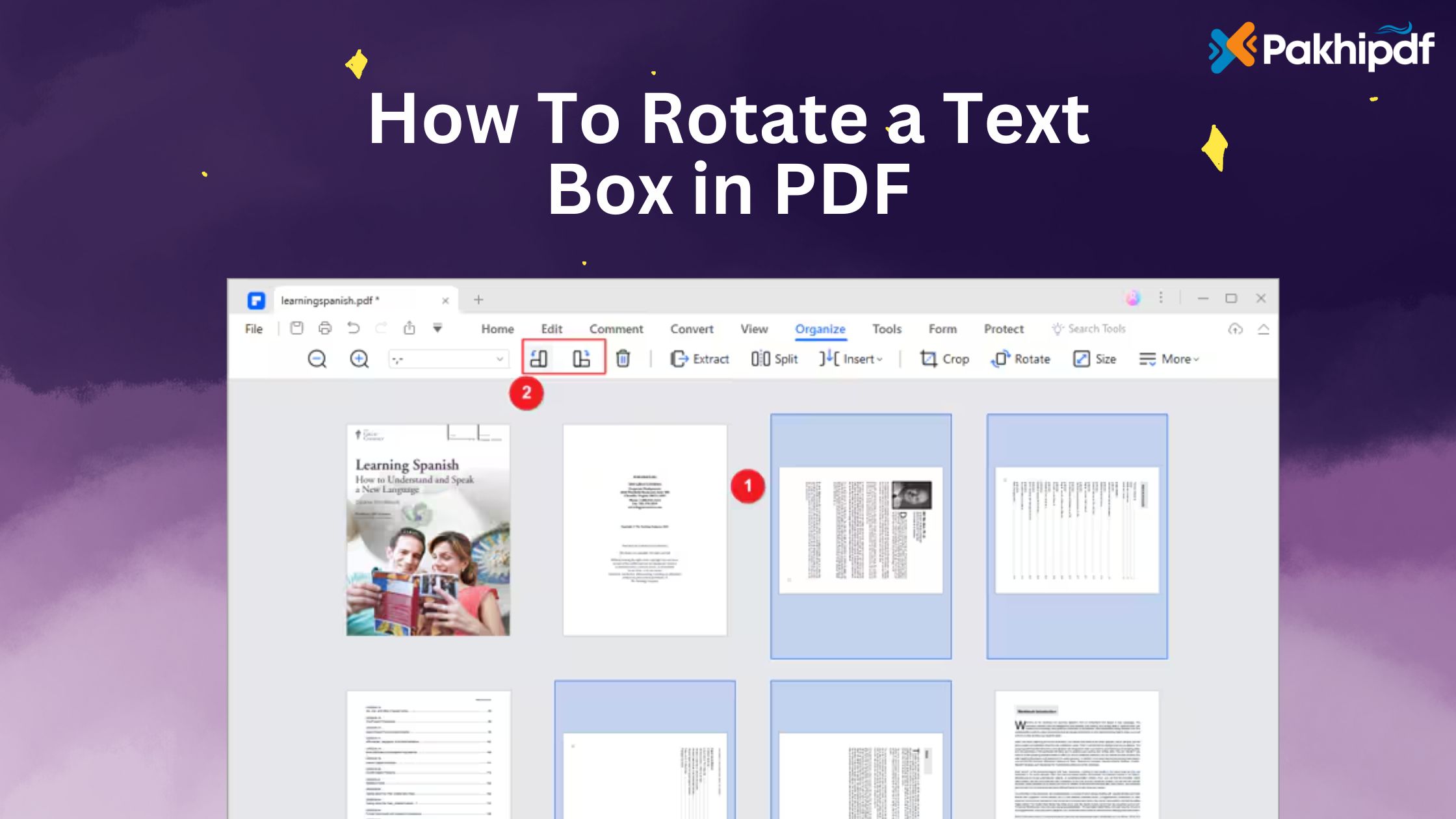
How To Rotate a Text Box in PDF
Rotate a text box in PDF document can be useful in many situations — whether you’re adjusting the layout of a report, adding annotations at an angle, or fixing formatting issues in forms. However, unlike word processors, PDFs are not easily editable by default, and most people wonder how to manipulate elements such as text boxes.
Fortunately, there are several simple and effective methods to rotate a text box in PDF documents without needing expensive software like Adobe Acrobat Pro. In this guide, we will explain step-by-step how to do it using free and reliable tools.
1. Use Free Online PDF Editors
If you don’t want to install software, you can use online tools like PakhiPDF Editor or Smallpdf, Sejda, PDFescape, etc.
Step-by-step process:
- Open a reliable online PDF editor.
- Upload your PDF file.
- Select the Text Box tool.
- Click the existing text box you want to rotate.
- Look for a rotation handle or a specific rotate option.
- Rotate the text box to the desired angle (e.g., 90°, 45°, etc.).
- Apply changes and download the updated PDF.
Most online editors provide drag-and-rotate functionality or input fields to set rotation in degrees.
2. Using Adobe Acrobat (Paid Version)
If you have Adobe Acrobat Pro:
- Open the PDF in Adobe Acrobat Pro.
- Go to Tools → Edit PDF.
- Click on the text box you want to rotate.
- A bounding box appears with a small rotate handle (circular arrow).
- Click and drag the handle to rotate the text box as needed.
- Save the file.
👉 Adobe Acrobat makes this process smooth, but it requires a paid license.
3. Using Free Desktop Software
There are free desktop applications like PDF-XChange Editor or LibreOffice Draw that let you manipulate PDFs.
Example using LibreOffice Draw:
- Open LibreOffice Draw and import the PDF.
- Select the text box element.
- Use the rotation handles to rotate the text box.
- Export the edited file back to PDF format.
4. Tips for Better Results
✔️ Always work on a copy of your PDF to avoid data loss.
✔️ Use high-quality tools to ensure formatting stays intact.
✔️ For multiple edits, consider using desktop software for more control.
✔️ Check the final PDF on multiple devices to confirm proper rendering.
Conclusion
Rotating a text box in a PDF is easier than most people think. Whether you use online tools, desktop applications, or Adobe Acrobat, you can accomplish this in just a few simple steps.
For quick, free, and hassle-free editing, online tools like PakhiPDF Editor are a great choice – no downloads required!
Simplify your PDF editing workflow and get precise results in minutes.